OneDrop is a tool I built so you can send text and files between your devices through your own OneDrive. This post covers why I made it, where it’s available and what I’d like to improve. I left the implementation details for a separate post. I’ve since written them up in part one and part two of my series on storage and sync.
# Why I made OneDrop
I use Edge on pretty much everything. It came with Windows and I got used to it, so even on my Mac and phone I install it and make it my default browser.
Edge’s built-in Drop used to be how I moved things between devices. I used it all the time. When a later version of Edge removed the feature, I wanted to keep that habit going.
I could send files to myself in WeChat, and there’s no shortage of file transfer tools. But most of the time I’m just passing a link, a bit of text or an attachment to another device. Opening a separate app always felt like one step too many. Edge is usually open already. I wanted to be able to send the item right there and get on with what I was doing.
# Why OneDrive
I didn’t want to run a server just to move things between my own devices. The cost and maintenance didn’t make sense for this use.
Since I was building for Edge, using a Microsoft account and OneDrive felt natural. Many Edge users already have an account. You sign in with your own account and the text and files stay in your own OneDrive. There’s no separate storage service for me to maintain.
A Microsoft account includes 5 GB of free cloud storage, shared with other content on the account. That’s normally enough for my snippets and occasional files. If your OneDrive is already pretty full, check the space available first.
# What it’s like to use
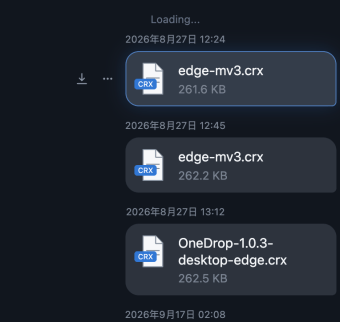
Text and file transfers share a single message list. On desktop Edge the extension opens in the sidebar, so I can use it without leaving the page.

That’s the experience I wanted to keep: send something here when I need it on another device, then pick it up there.

You can go back through your message history. I wanted long-term archiving too, so OneDrop could match Drop’s features as closely as possible.
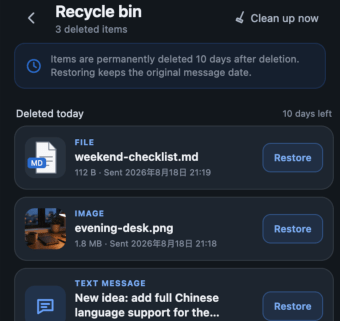
The free 5 GB can fill up. OneDrop lets you delete individual messages and has a recycle bin, so you can keep the records you want and remove the rest. Deleting a message from the list removes its record there. To finish deleting it and reclaim the storage, clear it from the recycle bin too.
# Where it’s available
The desktop extension is available from the Edge Add-ons store.
Mobile installation takes more work. Edge has a submission process for mobile extensions. I submitted the Android and iOS forms, but at the time of writing I hadn’t received a reply to either. The desktop store installation route doesn’t work for them yet.
For early access, the GitHub release includes a CRX package. It requires developer mode and the corresponding test browser: Edge Canary on Android or the TestFlight version of Edge on iOS. The installation guide lists the steps. They don’t carry over directly to stable mobile Edge.
On iOS there’s also an IPA for the native application. It’s intended for import into LiveContainer, which you need to set up first. It isn’t an App Store build or something you can install by tapping the download.
# Rough edges and plans
The hurdle I notice most is still installation on mobile. The desktop version has a store listing, while both a test browser and LiveContainer need extra setup. That’s an awkward first impression for a tool I made to save myself a few steps.
I’ll keep an eye on the mobile extension submissions. I’ve also considered a standalone Android app, but I haven’t set a date. For now I want to get the everyday operations right: sending, viewing and clearing items across devices.
The source is on GitHub. If you have similar habits, the installation requirements are a good place to start. At the time of this post, the project had reached 1.0.3. Most features were in place and had been through an initial round of testing. If you run into anything, leave a comment or open a GitHub issue.