
I changed autologin, the boot menu timeout and screen locking on my Kali VM to cut down on the steps between restarts.
While setting up my Linux lab, I kept rebooting the guest, waiting for GRUB and typing my password. I wanted to skip some of that repetition O(∩_∩)O.
This was my personal 2022 Kali VM, with Xfce and LightDM. Enabling autologin means anyone who can start that VM can reach the selected desktop session.
# Allow root user login
For an occasional administrative command, use sudo from a regular account. To set a root password in this guest, I used:
sudo passwd root |
Enter your current account password and then the new root password at the prompts. The terminal does not echo the characters.
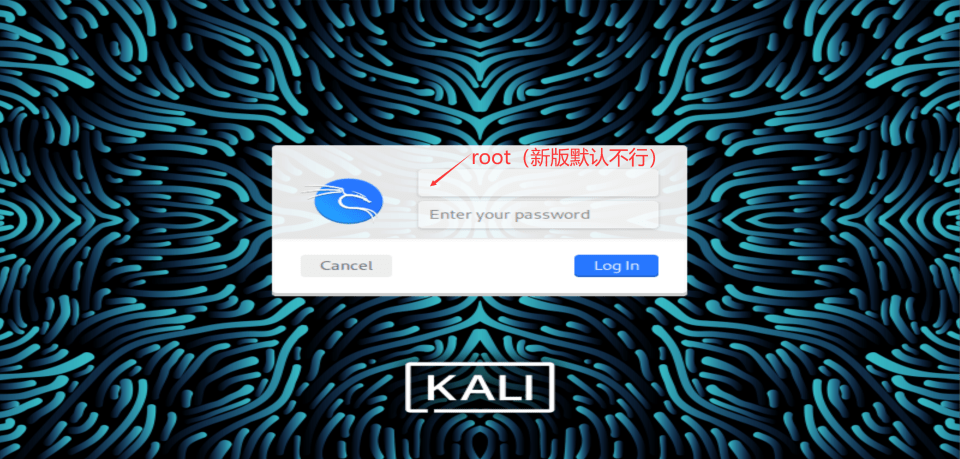
The screenshot shows the graphical login. My old annotation about newer releases was too broad: root login depends on the account state and display manager configuration.
For other desktops see Kali’s root login notes.
# GRUB temporary start parameters
If you need to reset the root password during the configuration process and cannot use sudo with existing accounts, you can modify the temporary boot parameters of GRUB, enter the root Shell, execute passwd root to set the password, and then restart to return to the normal login process.
In the boot menu, select Kali and press E to edit the current boot entry:
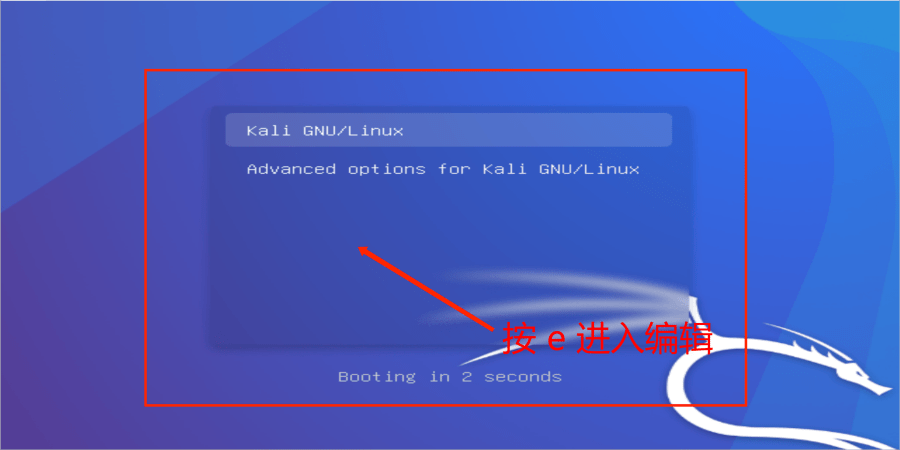
The next two images record the changes at the end of the linux line. The original content was ro quiet splash :
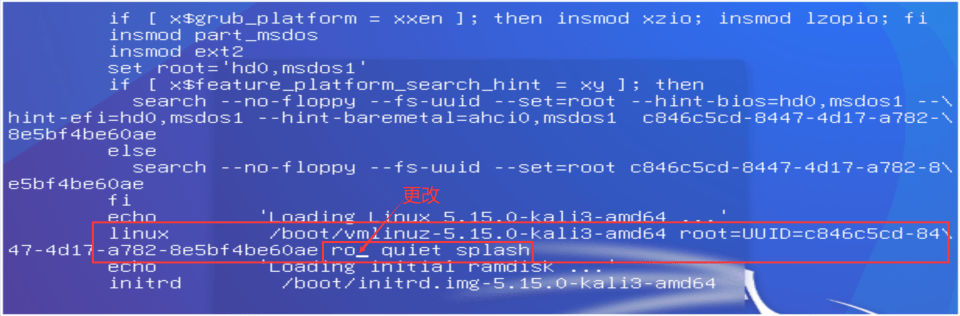
After modification, it becomes rw init=/bin/sh splash :

Here, rw indicates mounting the root filesystem in read-write mode, and init=/bin/sh specifies starting /bin/sh instead of the normal init program. Press Ctrl + X to continue booting with the modified parameters. The changes only take effect for this boot session. For normal desktop entry, retain the original boot parameters. For parameter meanings, refer to the Linux Kernel Documentation.
# Skip Login Page Straight In
LightDM handles autologin. Back up the configuration before editing; changing GRUB is unnecessary for this step.
sudo vim /etc/lightdm/lightdm.conf |
Find the active [Seat:*] section. The explanatory comments near the top of the file are not active settings.
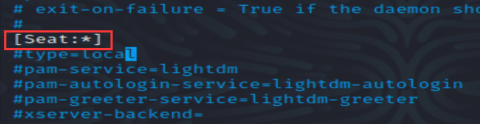
Set these two values in that section:
autologin-user=root | |
autologin-user-timeout=0 |
autologin-user selects the account. I used root in this guest; a regular account can be selected instead. A timeout of zero signs in immediately.
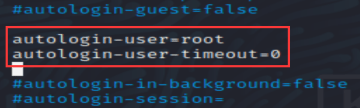
In Vim, press Esc, type :wq and press Enter to save and quit.
For the root account, also check the LightDM autologin PAM policy:
sudo vim /etc/pam.d/lightdm-autologin |
The line below blocks autologin for root. If it is present and you want root to log in automatically, add # at the start of the line to comment it out. Leave it active if you use a regular account.
# auth required pam_succeed_if.so user != root quiet_success |
The screenshot highlights the line before it was commented out:
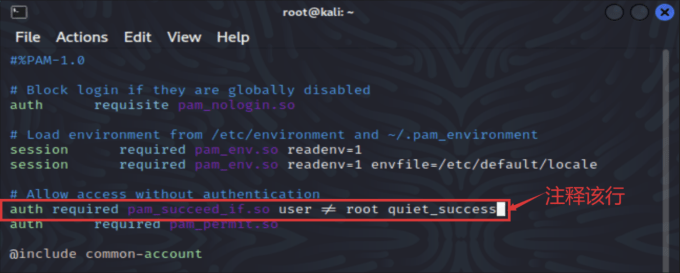
After saving, run sudo reboot and check that the VM opens the desktop of the account you selected. To restore the login screen, undo the autologin settings and restore the original PAM policy.
# Start skipping the 5s lead interface
Even with desktop autologin enabled, GRUB still waited five seconds. Pressing Enter started the default entry immediately.
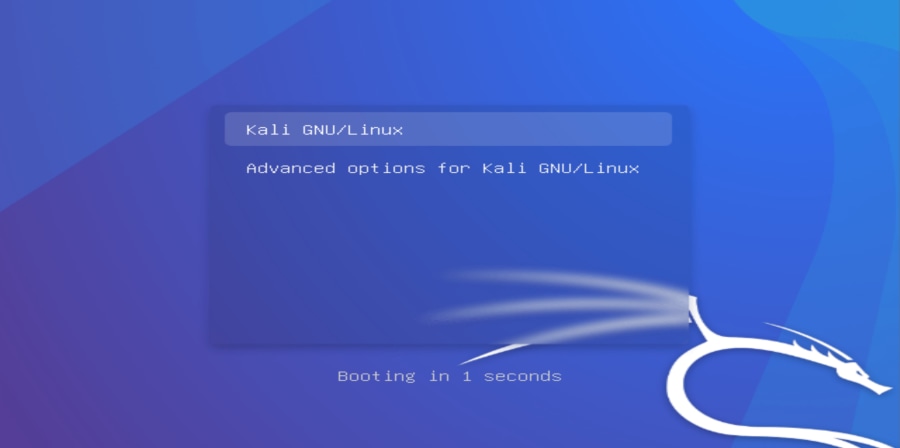
To change the timeout, edit /etc/default/grub:
sudo vim /etc/default/grub |
Find GRUB_TIMEOUT. In the screenshot it was set to 5 seconds.
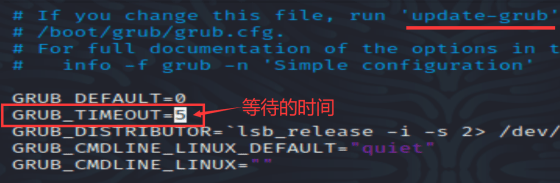
I changed it to:
GRUB_TIMEOUT=0 |
Zero boots the default entry immediately. Keep a short delay if you regularly choose other kernels or recovery entries. See the GRUB timeout documentation.
Save and regenerate the configuration:
sudo update-grub |

If the command finishes without errors, run sudo reboot to test the new timeout. To restore the delay, set GRUB_TIMEOUT back to 5 and run sudo update-grub again.
# Close automatic lock screen
While I waited for long-running commands, the idle desktop would lock and ask for my password again.
I adjusted the lock settings in Xfce’s power manager.
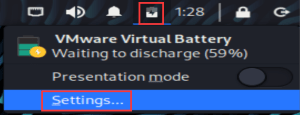
Click the power icon on the panel and open Settings:
In Security, distinguish these two controls:
- Automatically lock the session controls locking when the screensaver activates. Choose Never to turn this off.
- Lock screen when system is going to sleep independently controls locking on suspend.
In the screenshot I cleared only the second setting. The first still says “When the screensaver is activated”. To disable both behaviours, adjust both controls.
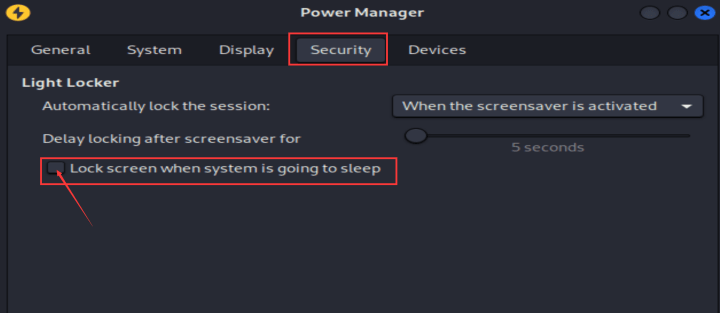
The changes take effect immediately. Close the settings window when finished.