I used 3CDaemon to run an FTP server on the host and transfer files into my Windows 7 virtual machine.
# Why FTP?
While installing VMware Tools in Windows 7, I kept hitting a driver signature error. I needed to install a SHA-2 support update first. My Windows 7 VM notes cover the error and the update; this post is about getting the file into the VM.
Shared folders weren’t available because VMware Tools wasn’t installed, yet installing it required a patch that was sitting on the host. Running an FTP server on the host let the guest download the file. The two machines only needed to reach each other; the guest didn’t need internet access.
I picked 3CDaemon to keep the setup short.
# A quick look at 3CDaemon
3CDaemon includes TFTP and FTP servers, a Syslog server and a TFTP client. I only used the FTP server. The host runs 3CDaemon and holds the files. The Windows 7 guest runs the FTP client. All the user and directory settings below belong to the host.
Here’s the application icon:
The tools are listed on the left, with the selected tool’s log on the right.
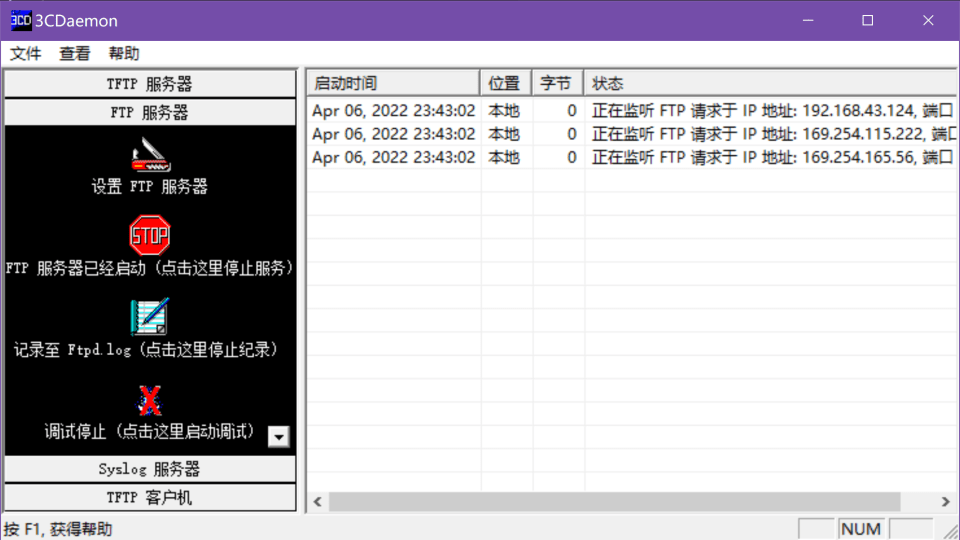
I used the Chinese version. Its download page was accessible when I checked, but I haven’t rechecked the installer itself for malware, so I can’t vouch for the file.
# Configure the FTP server on the host
Create an FTP user and choose the host directory it can access. That’s where the patch will go. This directory is served by 3CDaemon independently of VMware’s shared folders feature.
Select FTP Server on the left, open Configure FTP Server, then go to the FTP users tab:
- Enter a username and set its password.
- Select the user directory on the host.
- Set the permissions, save the user and confirm.
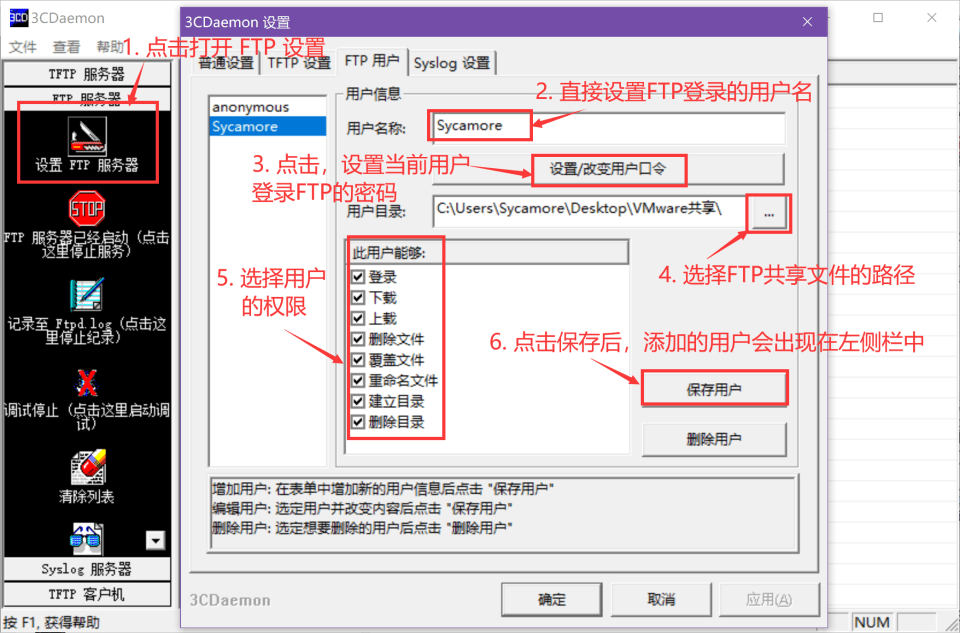
I enabled all the permissions in the screenshot, but this transfer only needs login and download access. Upload and deletion aren’t required. After saving, check for the server-started message on the left and the listening address in the log.
# Connect from the guest
Use the built-in Windows ftp command in the guest. There’s no need to install IIS or enable an FTP server there.
First check that the host and guest can communicate. I pinged the host, which was at 192.168.43.124 in this screenshot:
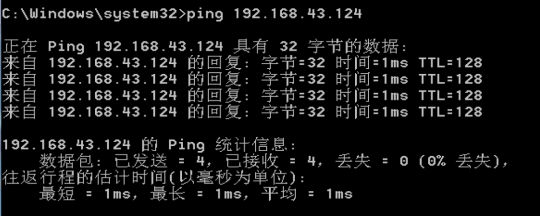
A ping reply confirms an ICMP response. For FTP, the service must also be listening and the host firewall must allow the connection. The default control port, TCP 21, is on the host. Leave the firewall on and allow the traffic needed between the two machines.
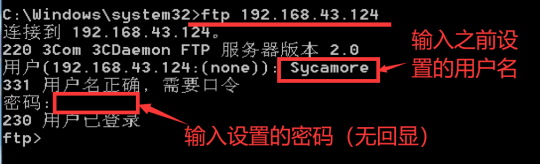
Open Command Prompt in the VM and substitute a host address reachable from the guest:
ftp 192.168.43.124 |
Enter the FTP credentials you set earlier. Nothing is echoed as you type the password. A 230 login response followed by the ftp> prompt means the login succeeded.
# Download the file
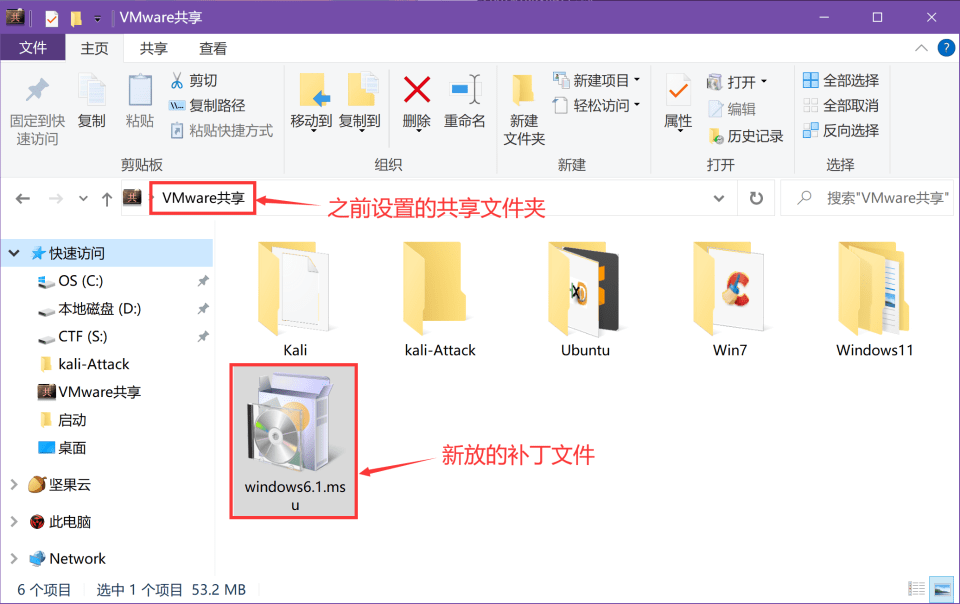
After login, the remote directory corresponds to the host directory assigned to this FTP account.
- Put the file in that directory on the host. I named the patch
windows6.1.msu; the commands below use that name.
- At the guest’s
ftp>prompt, enterdirand check that the file appears.
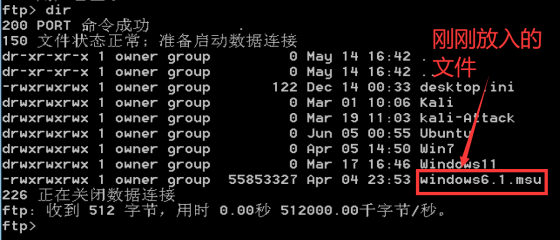
If login succeeds but dir or a download hangs, check the FTP data connection. Login and file transfers use separate connections, so reaching TCP port 21 alone doesn’t establish that files can be transferred.
- Decide where to save the patch. By default, the client uses the directory from which you launched it. To choose an existing guest directory, use
lcd:
lcd C:\Users\Sycamore\Desktop |
Substitute your own username and path. Then set binary transfer mode and download the file:
binary | |
get windows6.1.msu |
The patch is binary, so switch out of the default ASCII mode before transferring it. Microsoft documents both binary and lcd.
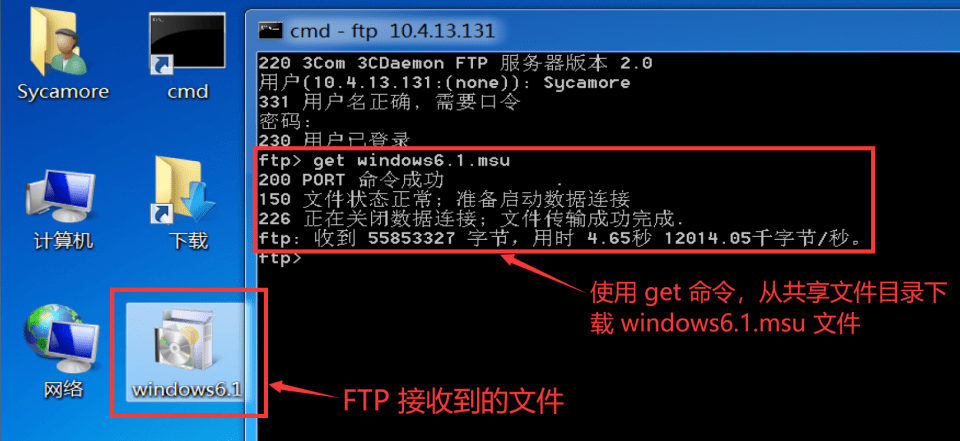
The screenshot shows get but omits the earlier binary command. It also shows a different host address, 10.4.13.131 ; use the address for your current setup.
- Once the transfer finishes, type
byeto close the session and exit the client.

The screenshot uses the abbreviation by . The full command is bye. The server replies with status code 221 when closing the control connection. That’s a response code, not a port number; the host’s FTP service is still running.
You can now install the patch in the guest. When you’ve finished transferring files, stop the FTP service in 3CDaemon on the host.